If a prop firm platform freezes while a trade is open, do not assume an order failed. A frozen screen tells you what your device can see, not what the trading server did. Stop sending new orders. Check the position and orders through a backup approved for your account, or contact the firm's official support channel if you cannot confirm their status.
The hardest part of an outage is deciding what not to do. Clicking Close again can be harmless on one platform and create an unwanted order on another. Likewise, a blank position list is not proof that the account is flat. This guide walks through the first few minutes, explains what evidence to save, and shows how to run a dry run before an evaluation.
All prices, times, and balances below are examples, not account rules. The firm sets the rules for its challenge and funded account. Use the permissions and instructions for the exact account you trade, not a shortcut copied from somebody else's setup.
For the broader service-selection and evaluation framework, use the prop firm passing service guide alongside this focused review of prop firm platform outage: what to do when a trade is open.
What to do in the first minute
Take your hand off the order buttons and write down the time. Note the time zone, the instrument, and whether your last action was to open, close, cancel, or modify an order. A note as simple as “13:42 UTC, tried to close ticket 428, no confirmation” gives you something specific to look up. It also helps separate what you remember from what the account later shows.
Next, look for signs of a stale screen. For example, note the time of the last quote and whether other symbols still update. A panel that moves does not prove that order routing works. A news feed can refresh while the account connection is down. Conversely, a quiet quote may be normal outside trading hours.
If you have an approved second way to see the account, open the positions, pending orders, and history views. Check the account ID and server first. Do not use the backup to start another trade. Its first job is to tell you what already exists. If the views disagree or neither updates, use official support and say exactly which status is unknown.
Find out what actually stopped working
Start with the narrowest check that does not place a trade. For instance, see if your phone can load the firm's official status page while the desktop cannot reach any site. That points toward a problem with the desktop or local connection. It does not tell you whether your order reached the server before the connection dropped.
Then check the scope of the issue. Did 1 symbol stop updating, did the chart freeze, or did the account tab lose its connection? These are different symptoms. For example, an instrument may be halted while the rest of the platform works. In that case, a second device will not reopen the market.
A notice on the firm's status page can corroborate a wider issue, but a green status page does not rule out an account-specific problem. Keep both facts in your notes. You might write that the site reported normal service at 13:44 UTC while your order history did not refresh. This is stronger than an unsupported conclusion about which party caused the failure.
Avoid changing several things at once. Reinstalling the terminal, resetting the router, and changing servers in quick succession can erase clues and cost time. First record what you can see. Then make the smallest approved check that can distinguish a local fault from an account or execution issue.
Recognize accepted, rejected, and unknown orders
An accepted order appears in a current account record with its own identifier. It may be pending, filled, partly filled, or canceled after acceptance. Those states are not interchangeable. For example, an accepted limit order can sit unfilled while a chart appears to touch its price. Check the order state and the filled quantity rather than the chart alone.
A rejection should have an account message, journal entry, or other confirmation that the instruction did not go through. Before trying again, check the reason. A closed market, blocked symbol, or unavailable price can reject a request for reasons that another click cannot fix. If the firm blocks activity during a specific window, a different device does not change that rule.
An unknown order is a request that you sent but cannot match to a trustworthy record. A spinning button, an error on a stale screen, or a blank line in a disconnected app can all leave you in this state. Importantly, lack of evidence that it filled is not evidence that it failed.
Write down which state you can prove. If the only reliable fact is that you tried to close a position at a certain time, say that. Keep the open quantity marked unknown until you have a current record. The aim is to rule out a duplicate, not to force a fast answer from incomplete data.

Avoid duplicate entries and accidental reversals
Suppose you hold 1 contract and submit a sell order to exit. Your desktop freezes before the fill message arrives. You open your phone and see a cached view showing the original long. If you send another sell order without checking, you may open a short after the first sale has already closed the long. The outcome depends on the platform and account mode.
Instead, check the live record for the initial exit. Use its order or deal ID when available. If the record shows a partial fill, compare the remaining quantity with the intended close. For example, if 2 of 3 units filled, only 1 unit remains. Do not rely on a button labeled with the original trade size if the screen has not refreshed.
Also check working orders. A trader who ends up flat can still have an entry order waiting for a price. On some setups, stops and targets are linked to the position. On others, conditions depend on how the order was entered or whether a tool keeps running. Confirm what the ticket actually shows after a close or cancellation.
A useful drill is to write a rule for yourself: no new instruction until the last one is reconciled. If a second terminal is also stale, the rule still applies. The firm may provide a support or risk desk process for reducing exposure. Save that process ahead of time rather than guessing at emergency permissions.
Set up a backup your firm actually allows
Check whether the firm allows an official web terminal, a mobile app, or another device on your account. Ask about concurrent logins, device changes, and network rules when the terms are unclear. Record the answer and the account plan it applies to. An approved option for a demo or another firm may not be available on your evaluation.
Then test the backup on a demo account where it is permitted. Find the sections for positions, pending orders, executions, and cancellations. Confirm where the account ID and time zone appear. A backup is less useful if it takes several minutes to find history or if you cannot tell which server it is showing.
A phone on mobile data can give you a route around a failed home connection. Still, it may share the same upstream order server as your desktop. Likewise, a virtual private server can help with some local power or connectivity failures, but it does not fix a firm-wide outage. Think of each backup as covering a specific failure, not every failure at once.
Keep credentials private. For example, use the firm's account recovery process rather than sharing a password or one-time code in a public group. If you cannot use an approved connection, stop and ask the firm what to do. Do not switch blindly to a new machine, remote connection, or shared account under pressure.
Know where stops and other protections run
Before trading, ask which instructions live on the firm's server and which depend on a desktop app, script, or add-on. A platform may keep a submitted protective stop on its server while an automated trailing feature runs on your device. When that device disconnects, the last server-side stop may remain, but future adjustments might not happen.
Check the record for the stop itself, not just a line drawn on the chart. Look for the stop price, the position or order it belongs to, and whether the latest modification was accepted. If a move from 98 to 99 is still unconfirmed, do not mentally use 99 to calculate worst-case loss.
Even a working stop does not guarantee a fill at the displayed price. An instrument may gap, quote a wider spread, or briefly have little depth. The order type and market determine how execution can differ from the trigger. That matters in a prop firm challenge because one unexpected fill can use more of the daily loss budget than planned.
Run a small demo test for each order type you rely on. Place a stop, close the terminal without sending anything else, and check whether the approved backup still shows that order. Then read the firm's explanation. A demo check is useful evidence about your setup, but it is not a promise about fills or availability in every account.

Related guide for Prop Firm Platform Outage: What to Do When a Trade Is Open: A useful companion for this decision is Prop Firm Challenge Platform and VPS Checklist for Reliable Execution. Technical issues can create slippage, missed exits, or rule breaches. Use this platform and VPS checklist before relying on a challenge account.
Record the incident without exposing account details
Save the timestamp and time zone, the last reliable quote, any visible error message, and the relevant order or position ID. Add the device and the platform version if you know them. A short screen recording or screenshot may help show the sequence, but the firm's order records are usually a better source for the underlying account state.
Keep an unedited copy for your own records. If you need to share an image publicly, make a separate redacted copy. Remove account numbers, names, email addresses, balances that are unrelated to the issue, and details that could expose access. Use the firm's official secure route for information they need to identify the account.
Put events in order. For example: close request at 13:42:10 UTC, visible disconnect at 13:42:12, history unavailable on the backup at 13:43, support ticket opened at 13:45. If you only know the minute, say so. Do not add seconds to make the timeline look more precise than it is.
Include the exact uncertainty you want resolved. Were you flat? Was a stop modified? Did a cancel reach the server? A useful record should let another person find the same event. Avoid burying the question in several pages of commentary about the wider market or the company's reputation.
Send a support message they can act on
Open the firm's official help portal or use the contact channel listed in your account. Start by asking for account status if exposure may still be open. When the account is already confirmed flat, explain that you are requesting a review rather than immediate help with a live position. That distinction makes the issue easier to route.
Here is a template: “At 13:42 UTC, I submitted a close for ticket 428 on the approved desktop platform. The screen disconnected before confirmation. The approved backup does not show a fresh status. Please confirm whether the order was received, the executed quantity and time, and whether any position or related order remains open.” Fill in your own details.
If the firm asks for logs, use the platform's export or help instructions. Send the smallest relevant time range first. State what you observed, not what you think a server must have done. If you have the time from a platform clock and from your phone, label both so a reviewer can line them up.
Copy the ticket number into your journal. If you follow up, add evidence to the same thread rather than opening several identical requests. Do not assume that compensation or a reset is owed. Ask what policy applies and which evidence the firm uses to decide. Keep a record of the reply and the date.

Separate an outage from slippage or a halt
A delayed response, a bad fill, and a halt can feel similar from the chart. However, they leave different records. A fill report can show a real execution at an unexpected price. By contrast, an outage may leave part of the order sequence missing from your screen. An exchange or instrument halt may prevent everyone from executing for a period.
To compare prices, write down which quote was available to the side you traded. A chart can show the midpoint, the bid, or another feed. That is not necessarily the price at which a buy or sell could execute. Comparing a fill with an unrelated midpoint can make a normal spread look like execution slippage.
For example, say a protective sell triggers near 100 but fills at 99.70. At $10 per point for 2 units, that 0.30 difference is $6 before fees. Whether it reflects a wider spread, a gap, or a delay needs more evidence. Start with the time, order type, quote basis, and fill record before making a claim about the cause.
If the firm confirms a service interruption, keep that notice with the trade records. It still may not account for every price move that happened during the incident. Ask the firm to explain the order sequence and apply the published incident policy to your account, rather than treating the notice as proof of a specific price.
Reconcile the account before you trade again
Once a connection returns, compare 3 views: open positions, working orders, and fills or deals. The first tells you exposure now. The second shows instructions that could change it. The last explains what already happened. Check each instrument and every account you touched during the event.
Next, recalculate the headroom against both the daily and overall loss rules. Use the firm's own treatment of floating profit or loss, fees, and reset time. For example, if the applicable daily floor is $95,000 and current measured equity is $95,650, the difference is $650. That is remaining room to the limit, not a recommendation to risk $650.
If you cannot reproduce the dashboard figure, do not invent a missing item or start a new trade. Ask the firm how the calculation treats the relevant timestamp and fills. In particular, compare whether any open profit at reset or late fee posting changed the reference used for the limit.
Finish by checking whether any tool or pending instruction can resume on its own. An app that reconnects may process a scheduled action or resume automation. Pause what you are allowed to pause and reconcile it with the current positions. Only return to your plan once the records match and the account still qualifies under the firm's rules.
Run a demo outage drill before your next challenge
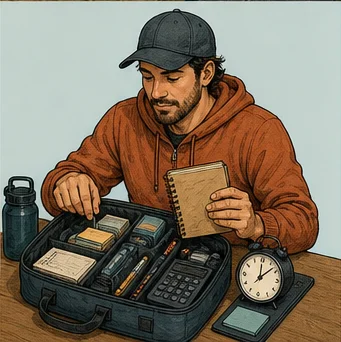
Set aside a short demo session with your approved devices. Open a small demo position and record its ID, the stop, and a working order. Then simulate a local failure by closing the primary app. Do not disrupt a live account or the firm's access. The point is to test the handoff, not to create a real execution problem.
From the backup, locate the position and repeat its ID or details back to yourself. Next, find the stop and working order. Compare the account's displayed time with your notes. If you cannot do those checks without guessing, take screenshots of the correct menus and add those steps to your plan.
Repeat with a different scenario: the main platform shows a close request but the screen stops before it confirms. Practice looking up the fill without repeating the order. Then write a mock support ticket. If you cannot describe the issue in a few lines, work out which identifiers or timestamps you are missing.
Finally, decide when a drill counts as finished. A sensible pass means you can verify exposure, identify a remaining working order, and find the official support contact. Keep the written steps short enough to use under pressure. Revise them after a platform update, a device change, or a move to a new account plan.

Related guide for Prop Firm Platform Outage: What to Do When a Trade Is Open: For the next practical part of your preparation, continue with Slippage Management for Prop Firm Challenges. Slippage cannot be removed, but measuring it and allowing for it in sizing helps keep real execution inside challenge risk limits.
Decide whether to stop for the session
After an incident, a working connection is only one part of the return decision. Check whether the platform stays stable, the account figures match, and your trading session still fits the plan. If any item is in doubt, waiting can be the simpler choice. An evaluation does not get safer because you feel behind.
Think about your next decision in isolation. Would you take this setup if the outage never happened? If the answer is no, the urge to trade may be about recovering lost time or offsetting an unexpected fill. In that case, close the chart and write down what would count as a normal session tomorrow.
If there is still exposure but no reliable way to act, stay with the official support route and the firm's emergency instructions. For instance, keep the case number and any account confirmation in one place. Do not ask someone in a public chat to log in or place an order for you.
When you do return, count the incident loss, fees, and any changed rules in the plan. A normal size from yesterday may be too large for today's remaining buffer. It is also valid to finish with no more trades even if the issue is resolved. The goal is a controlled account, not a completed quota.
Handle outages near the daily loss reset
An outage just before a reset adds a timing problem. Your phone may already show a new calendar date while the firm still counts the prior trading day. Likewise, the order might have been sent before the reset but filled after it. When the loss limit is at stake, save both timestamps and ask which event the firm uses.
Consider an account whose daily drawdown is based on a value read at reset. If a position was still open at that instant, the reset value could differ from the figure you saw after the close. Even if both devices show the same final balance, they might not show the snapshot used to calculate the new limit. That is a reason to verify, not a reason to assume the loss room increased.
Write the timezone and exact stage of your account in the incident log. Ask for the applicable daily floor after the account has reconciled. Until you understand it, do not take a new position based on a guessed reset. A clock change does not cancel pending orders or override rules that apply to the whole evaluation.

Turn the incident into one useful change
After the session, separate the part you could control from the part you could not. A network outage may be outside your control. A missing support contact, uncertain time zone, or backup that has never been tested is not. Choose one gap that would have changed a decision and fix that gap first.
For example, if you spent 4 minutes looking for the account history on mobile, the fix is not a more expensive laptop. Record the exact navigation path and test it on the next demo session. If you could read the history but not distinguish a partial fill from a pending order, practice that specific case instead.
Review the records a day later, when the immediate stress has passed. Compare the written timeline with the platform export and the firm's reply. Correct any assumptions that turned out to be wrong. Then write the next test and its pass condition. “Find the official fill quantity from the backup without placing another order” is a better target than “improve reliability.” A change you can test is easier to trust when a real screen freezes.
Make a one-page outage plan
At the top, write the account plan, platform, and correct official support channel. Add the date you last tested the approved backup. Put the first actions in order: stop entering new requests, write down the last action, check the correct account, and confirm the last order before replacing it.
Next, add the fields you need to reconcile: position ID, symbol, side, quantity, stop status, pending orders, and available drawdown. If you trade more than one account, include which account you must check first. Avoid a generic line like “check the platform.” Name the screen where the proof appears.
Leave space for what you will do if the backup also fails. For example, open a ticket using the official portal and include the order ID and time zone. Decide what numbers you will not guess from memory. Note where to store a copy of the incident history and when to review it.
Finally, keep the plan beside your session notes rather than inside the same terminal that might freeze. On a device you can still reach, save the firm contact and the rules you need. A short note that is available during an outage is more useful than a long playbook you can only open from the trading desktop.
Final Takeaway
When a platform stops responding, your first job is to learn the real account state. Check what reached the server, what filled, and what could still execute. Use an approved backup or official support, not another click from a stale screen.
Before the next evaluation, test recovery on a demo, keep a clear incident record, and decide when to stop. A rehearsed process will not prevent every outage. It can prevent a lost connection from turning into a second mistake.
Start with one concrete task. Find the order history on the backup you are allowed to use and save the path in your notes. If there is no approved backup, save the official support route and the information the firm asks for. Either step gives you a better first move than guessing.